Overview
Every video created in SundaySky is automatically generated with closed captions, ensuring that all content is accessible to a wider audience. The closed captioning is generated based on the text added to the narration placeholders in the video scenes.
If you want the closed captions to appear by default, you'll need to configure the setting based on how you're hosting the video:
In the Landing Page Builder, toggle on Turn CC on by default.
See Creating a SundaySky Landing Page for complete instructions.
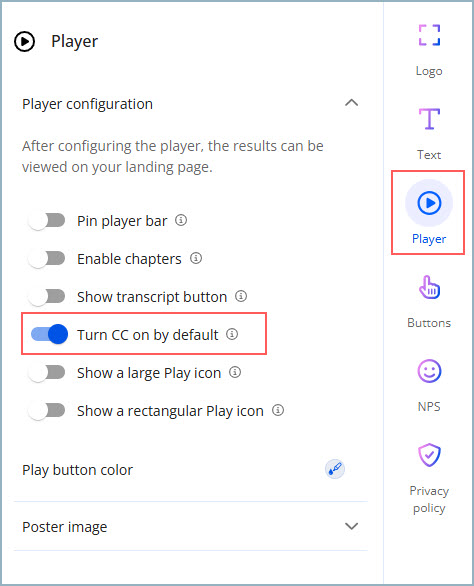
See Creating a SundaySky Landing Page for complete instructions.
In the Embed Code Builder, toggle on Turn CC on by default.
See Embedding the SundaySky Player in a Webpage for complete instructions.
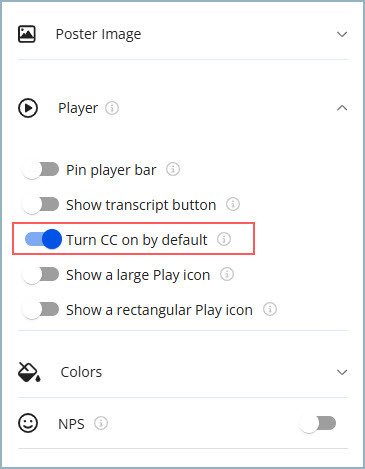
See Embedding the SundaySky Player in a Webpage for complete instructions.
Before downloading the video, make sure to select Video + CC.
The closed captions are downloaded to a WebVTT file that needs to be located in the same folder as the MP4 file.
See Downloading a Video as an MP4 File for complete instructions.
The closed captions are downloaded to a WebVTT file that needs to be located in the same folder as the MP4 file.
See Downloading a Video as an MP4 File for complete instructions.
Regardless of whether closed captioning is set to display by default, the closed captioning button will always appear in the SundaySky player. You can enable or disable closed captioning by clicking the CC button in the control bar.
Text Used for Closed Captioning
| 1. | The text entered in the narration placeholder is used for the scene's closed captioning. |
| 2. | If the narration includes personalization—either with a personalization token or with Message by Audience—the closed captioning will change according to the viewer. |
| 3. | If you add a video asset with sound to a scene—and do not add text to the narration placeholder—the scene will not have closed captioning. |